---
title: "#16: UIStackView 🚦🚥"
url: https://littlebitesofcocoa.com/16-uistackview
author: Jake Marsh
published: 2015-06-15
topics: ["iOS 9","UIKit","Layout"]
description: "UIStackView changes everything. New in iOS 9, you can think of UIStackView as an abstraction layer on top of Auto Layout."
---
# #16: UIStackView 🚦🚥
By Jake Marsh, June 15, 2015. HTML: https://littlebitesofcocoa.com/16-uistackview
_UIStackView_ changes everything. **New in iOS 9**, you can think of _UIStackView_ as an abstraction layer on top of **Auto Layout**. It arranges it's subviews and manages their constraints for you.
One way to think about _UIStackView_ is as the UIKit-born cousin to **`WKInterfaceGroup`**, the main layout component for building Apple Watch apps with **WatchKit**.
 _UIStackViews_ layout their arranged subviews horizontally or vertically, and they provide options for how arranged subviews should be aligned and distributed.
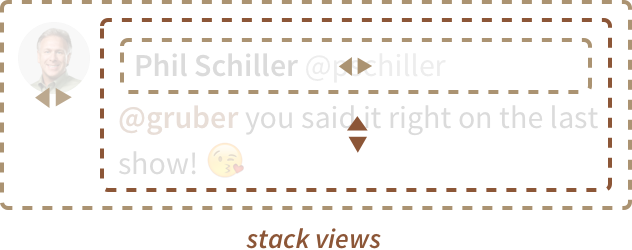
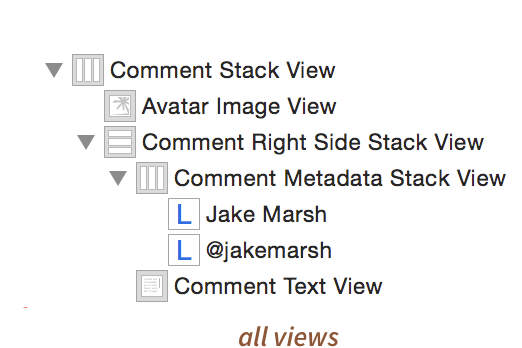
You can of course nest many _UIStackViews_ inside each other to easily and quickly create complex layouts. Let's test it out by creating something super common like a **UITableViewCell** to display a comment. We'll use 2 horizontal and 1 vertical _UIStackView_:
 ## UIStackView Pro Tips
- 🌀 Set views to hidden for easy conditional layout
- 🏃 Hide views in animation blocks to animate the re-layout
- 🎳 Use size-classes to easily alter layout for different environments