---
title: "#59: BRYXBanner 🎏"
url: https://littlebitesofcocoa.com/59-bryxbanner
author: Jake Marsh
published: 2015-08-13
topics: ["Libraries"]
description: "BRYXBanner is a great new library by Harlan Haskins for displaying \"dropdown\" notifications banners. It has a very straightforward API, while remaining..."
---
# #59: BRYXBanner 🎏
By Jake Marsh, August 13, 2015. HTML: https://littlebitesofcocoa.com/59-bryxbanner
[BRYXBanner](http://git.io/banner) is a great new library by [Harlan Haskins](https://github.com/harlanhaskins) for displaying "dropdown" notifications banners. It has a _very_ straightforward API, while remaining extremely flexible. Let's take a look at some different ways to use it.
 Momentarily show a banner. By default banners are dismissed on tap, swipe, or after the duration has elapsed.
``` swift
let banner = Banner(
title: "New Mission Alert",
subtitle: "New mission added to the schedule.",
image: nil,
backgroundColor: UIColor.lightGrayColor()
)
banner.show(duration: 3.0)
```
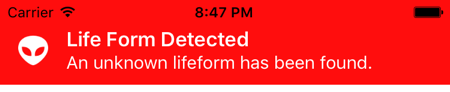 Without a duration, the show function caused the banner to be shown until the user taps it. Here we're passing in a closure that will be executed when the user taps the banner.
``` swift
let banner = Banner(
title: "Life Form Detected",
subtitle: "An unknown lifeform has been found.",
image: UIImage(named: "alien"),
backgroundColor: UIColor.redColor()
) {
print("banner tapped!")
}
banner.hasShadows = false
banner.show()
```
 Disable image tinting to display all kinds of images.
``` swift
banner.shouldTintImage = false
```
 Use the provided `.textColor` property to change all the colors at once, or use the exposed title and detail labels to completely customize the look of each banner, including font face, size, color, etc.
More info about **BRYXBanner** can be found at [git.io/banner](http://git.io/banner)