---
title: "#69: Compression Resistance \u0026 Content Hugging 💢"
url: https://littlebitesofcocoa.com/69-compression-resistance-content-hugging
author: Jake Marsh
published: 2015-08-27
topics: ["UIKit","Layout"]
description: "Content Compression Resistance Priority controls how the frame of a UIView will be calculated when one or more Auto Layout constraints describe its width or..."
---
# #69: Compression Resistance & Content Hugging 💢
By Jake Marsh, August 27, 2015. HTML: https://littlebitesofcocoa.com/69-compression-resistance-content-hugging
**Content Compression Resistance Priority** controls how the frame of a **UIView** will be calculated when one or more **Auto Layout** constraints describe its width or height as being smaller than its **intrinsic content size**. Let's look at a bare bones example:
Here's a **button** with a really long name:
 We've added a simple constraint telling Auto Layout to try to keep the width of our **button** at 44 points. **Auto Layout** does as its told and collapses our **button** making it completely unreadable. Don't worry, we can use **Compression Resistance** to stop this.
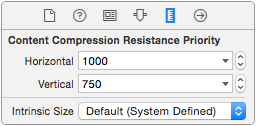 We select our **button** in **Interface Builder**, head over to the size inspector (**⌘⌥ + 5**), and set it's horizontal **Compression Resistance Priority** to 1000.
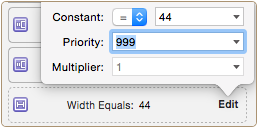 Now, we'll change the **priority** of our original 44 point width **constraint** to something less than 1000. We'll use 999 to emphasize the point, but this could be any number from 0 - 999.
Success! **Auto Layout** now allows our **button's** **intrinsic content size** to take precedent over our width **contraint**:
 Now that we understand **Compression Resistance**, understanding **Content Hugging Priority** is easy. It works in a very similar manner, but instead of managing whether a **view** is made _smaller_ than its **intrinsic content size**, it deals with whether or not a **view** can be made _larger_ than its **intrinsic content size**. Let's look at one more example to illustrate this, here's another **button**:
 If we were to add a set of leading and trailing **constraints**, telling the **button** to be as wide as the **view controller** it's sitting on, it might look something like this:
 But, if we set the horizontal **Content Hugging Priority** of our **button** to 1000, and the priority of those leading and trailing **constraints** to 999, our **button **becomes nice and small again: