---
title: "#90: Custom Xcode Project Templates 🔨"
url: https://littlebitesofcocoa.com/90-custom-xcode-project-templates
author: Jake Marsh
published: 2015-09-25
topics: ["Tools"]
description: "Picking up where we left off in Bite #89: Today we'll look at adding our own custom project templates to Xcode."
---
# #90: Custom Xcode Project Templates 🔨
By Jake Marsh, September 25, 2015. HTML: https://littlebitesofcocoa.com/90-custom-xcode-project-templates
Picking up where we left off in [Bite #89](https://littlebitesofcocoa.com/89): Today we'll look at adding our own _custom project templates_ to **Xcode**. When **Xcode 6** debuted at **WWDC 14**, one of the things that had seemingly gone missing was the "Empty Application" **project template**. This **template** was great because it made no assumptions about what kind of **app** or **project** we were creating. Let's add it back as a _custom project template_.
Much like we did when creating **file templates**, we'll begin by creating a **folder** for our custom **templates** to live in. This will be: **~/Library/Developer/Xcode/Templates/Project Templates/Custom**. We'll create a new **folder** in here called **Empty Application.xctemplate.**
Then we'll need to create a **TemplateInfo.plist** to describe our **template**.
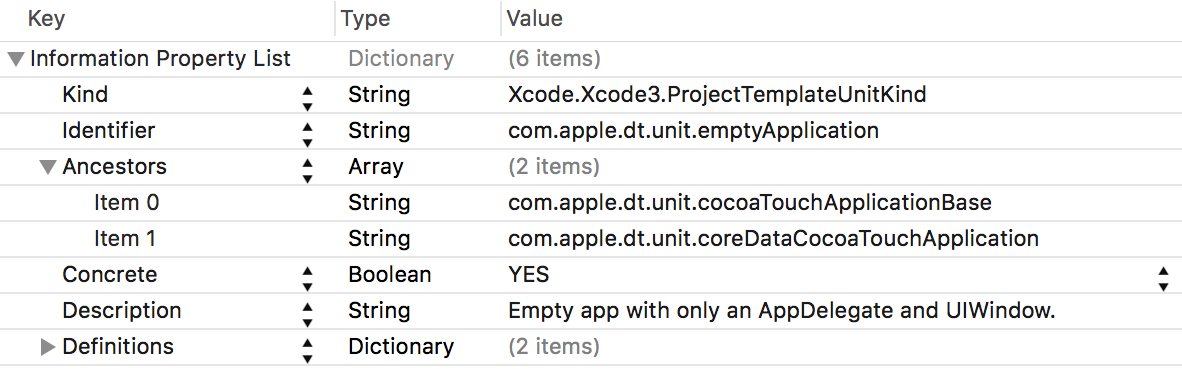 Most of this is boilerplate, except that last bit in **TemplateInfo.plist**, the **Definitions dictionary**. This where we'll specify the content of our base **AppDelegate** file. The full source of the **Definitions** block of the **plist** **file** is shown below. Note how the **key** informs where to inject the code, and **value** contains the code itself.
``` xml
Definitions
AppDelegate.swift:implementation:methods:applicationdidFinishLaunchingWithOptions:body
self.window = UIWindow(frame: UIScreen.mainScreen().bounds)
// Override point for customization after application launch.
self.window!.backgroundColor = UIColor.whiteColor()
AppDelegate.swift:implementation:methods:applicationdidFinishLaunchingWithOptions:return
self.window!.makeKeyAndVisible()
return true
```
Just like before we'll an **icon** for our new **template**. We'll add a **TemplateIcon.tiff** to our **template folder**. Now we can press **⌘N** in **Xcode** to try out our new **template**.
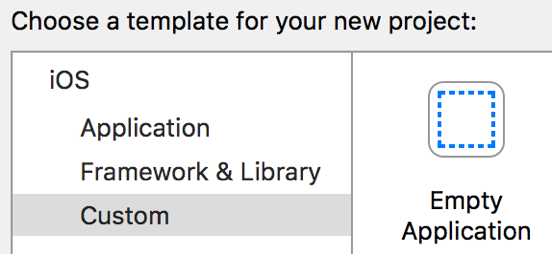 **Note:** Keep in mind when using this **template**, that the **UIWindow** will need a **root view controller** set on it before our **app** can do anything useful.
The "Empty Application" **project template** we created in this bite [can be downloaded here](https://media.littlebitesofcocoa.com/bite-assets/090-custom-xcode-project-templates-template-example.zip).