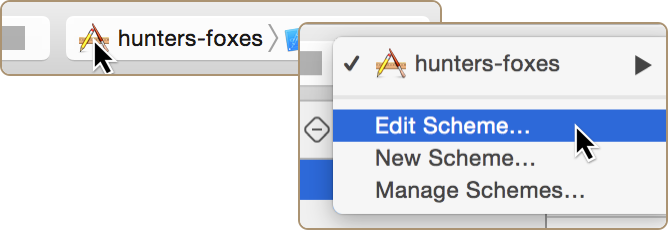
There's a ton of power tucked away inside of Xcode Schemes. Let's take a look at just a few of the helpful things we can do by clicking on our current Scheme and selecting Edit Scheme...
Default Simulated Locations
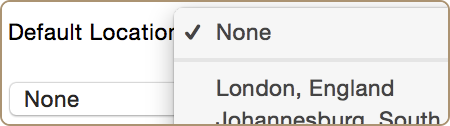
We can configure a default simulated location when our app is run by selecting Run in the left column and then Options.
Test Multiple States
Don't be afraid to go Scheme-crazy. Why not make one that runs with an application data bundle of a logged in user, and one of a logged out user? Now we can easily switch between developing in the two states.
Walking Dead Objects

Selecting Run in the left column, then Diagnostics to enable Zombie Objects. This will help you track down those pesky EXC_BAD_ACCESS crashes by holding on to deallocated objects (ding) and logging a message when something tries to interact with them.
Add Carthage Support

Carthage (covered in Bite #11) support is easy to add. We just need to make sure we share the Scheme that builds our framework.
Easier Profiling
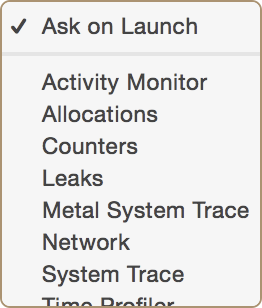
We can Duplicate our original Scheme again and choose an Instrument under Profile > Instrument. Now we can easily launch straight into a particular kind of Profiling with a single click.
Test Background Fetch
We can easily test our app when launched from a background fetch by editing our original Scheme then clicking Duplicate Scheme. On this new Scheme, we'll enable Launch due to a Background Fetch under Run > Options.